


Table of contents
Sign Up with Google Workspace
ClientSights connects to your organization’s Google Workspace through OAuth 2.0. Setup takes around five minutes and requires a Google Workspace admin account.
Before You Begin
You must be signed in as a Google Workspace administrator to complete setup. ClientSights uses admin-level OAuth to import your team and begin capturing activity signals across connected services. A non-admin user cannot complete the connection.
Make sure pop-ups are enabled in your browser - Google's OAuth consent screen opens in a new window.
How to Connect Google Workspace
Step 1: Create Your Account
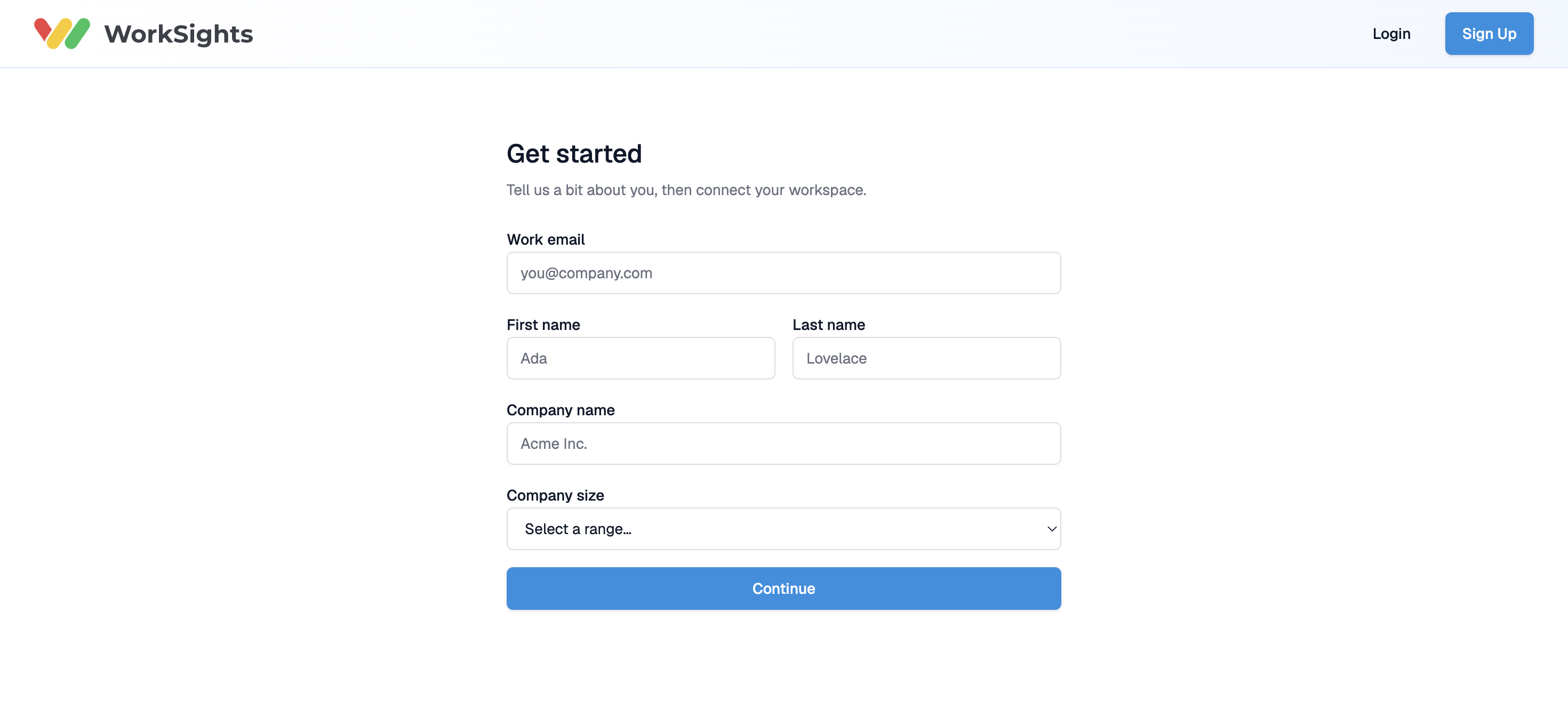
Go to ClientSights.ai and click Get Started. On the sign-up page, enter your work email, name, company name, and company size, then click Continue.
Step 2: Sign In with Google
ClientSights redirects you to Google to authenticate. Select your Google Workspace admin account and click Continue.
Step 3: Grant Permissions
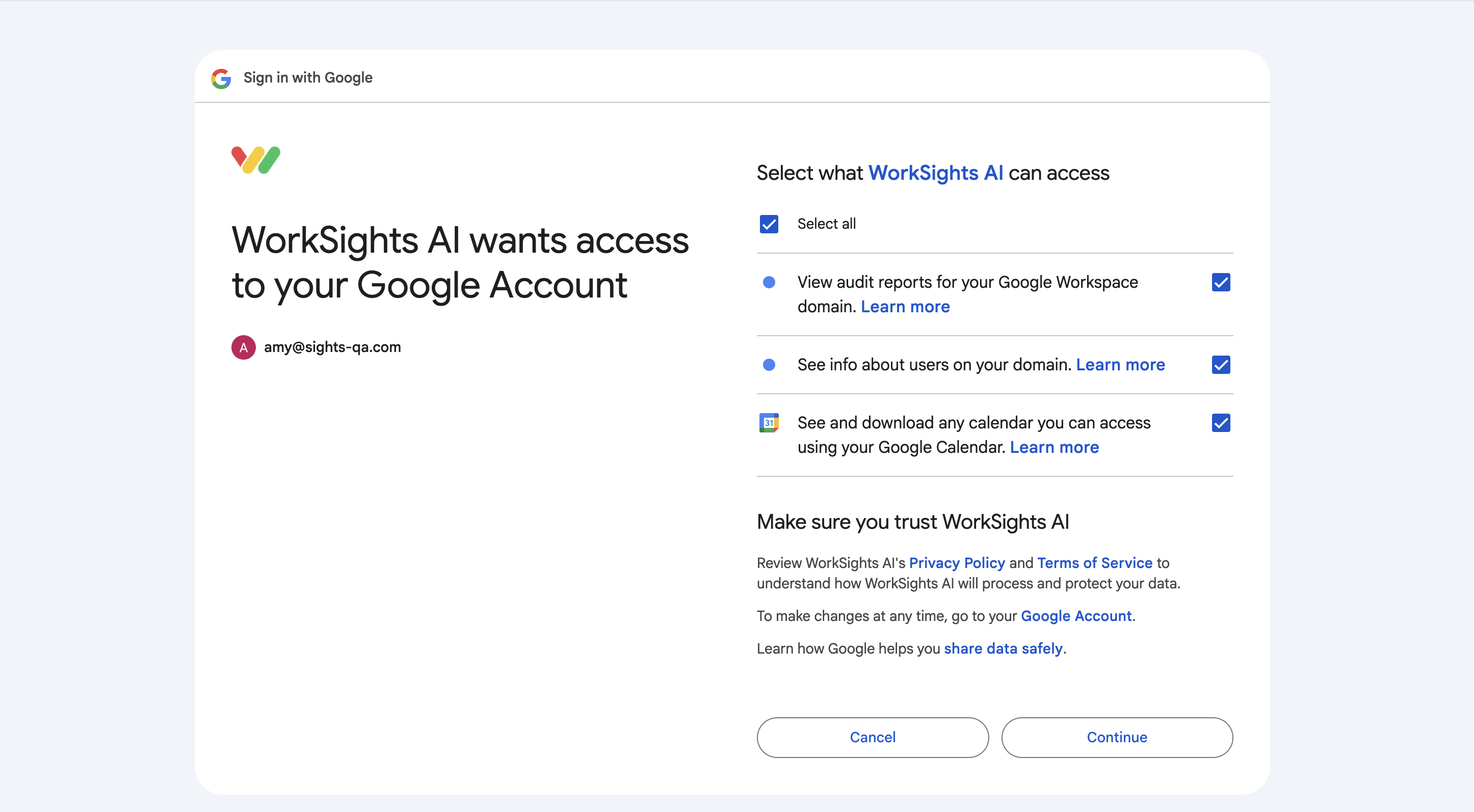
Google displays the permissions ClientSights is requesting. These are read-only scopes covering:
- Audit reports for your Google Workspace domain
- User directory information
- Google Calendar data
Select all permissions and click Continue. ClientSights cannot capture activity signals without these scopes.
Step 4: Set Up Your Account
Once Google authentication is complete, ClientSights takes you to the account setup screen. Enter your account name and confirm your location and timezone. Optionally, add a short description of your organization - this helps ClientSights AI provide more relevant insights.
Under Activity Sources, Gmail, Google Calendar, Google Drive, Google Meet, and Google Chat are selected by default. Deselect any services you don't want ClientSights to capture activity from. You can change this later from Settings.
Accept the Terms and Conditions and click Continue to User Selection.
Step 5: Select Your Team
ClientSights imports the users found in your Google Workspace. Review the list and confirm who should have access to ClientSights. Click Continue.
Step 6: Assign Roles
Assign elevated permissions to specific team members:
- Executives - full visibility across the organization
- IT Admins - can manage connections and account settings
- Managers - can see activity for their direct reports
Everyone not assigned a role is a Member by default and can see their own activity only. You can update roles at any time from Settings. Click Continue or Skip to return to this later.
Step 7: Set Up Org Structure
Drag and drop team members to build your reporting hierarchy. Once all users are assigned, click Finish.
ClientSights opens on your home screen. Your workspace is active and activity data will begin appearing as signals are captured from your connected services.
Step 8: Account Setup in Progress
After clicking Finish, ClientSights begins setting up your account in three stages:
- Setup - your account configuration is saved
- Importing - activity data is imported from each connected service for each team member
- Processing - scores are computed across your team
This usually takes a few minutes. ClientSights will email you when it's done. You don't need to stay on this page.

Once all three stages complete, click See the Activity Dashboard to open your workspace.

Security and Privacy
ClientSights connects to Google Workspace using OAuth 2.0 - the same authentication framework Google uses for its own applications.
- Permissions are strictly read-only
- ClientSights never stores or manages your Google password
- ClientSights never edits, moves, or deletes content in yourGoogle Workspace
- ClientSights processes activity metadata only. It does not read the content of emails, documents, or messages
You can revoke access anytime in Google Admin Console → Security → API Controls → App Access Control
Troubleshooting
OAuth error after granting permissions
If you see an error after completing the Google consent screen, your OAuth session may have expired. Close the browser tab, return to app.ClientSights.ai/start, and begin the sign-up flow again.
Non-admin account
If you are not a Google Workspace administrator, you will not be able to complete the connection step. The admin who completes setup should initiate the sign-up from the beginning. Starting the flow as a non-admin and switching accounts mid-setup is not supported.
Permission not granted
If you deselected one or more permissions on the Google consent screen and the connection fails, return to Settings and reconnect Google Workspace, granting all required scopes.
Next Steps
Once your account is ready, head to the Activity Dashboard to see your team's activity signals and start exploring your workspace.