


Table of contents
Everhour Setup
ClientSights connects to Everhour using an API token from your Everhour account. Setup takes a few minutes and does not require administrator privileges in Everhour. Any team member with access to their own Everhour profile can complete it.
Everhour requires a paid plan for API access. Free-tier accounts cannot connect.
For an overview of how Everhour activity appears in ClientSights, see Everhour Integration Overview.
Connecting Everhour
Step 1: Get Your API Token from Everhour
- Go to your Everhour profile
- Scroll to the bottom of the page to find the Application Access section
- Copy your API token
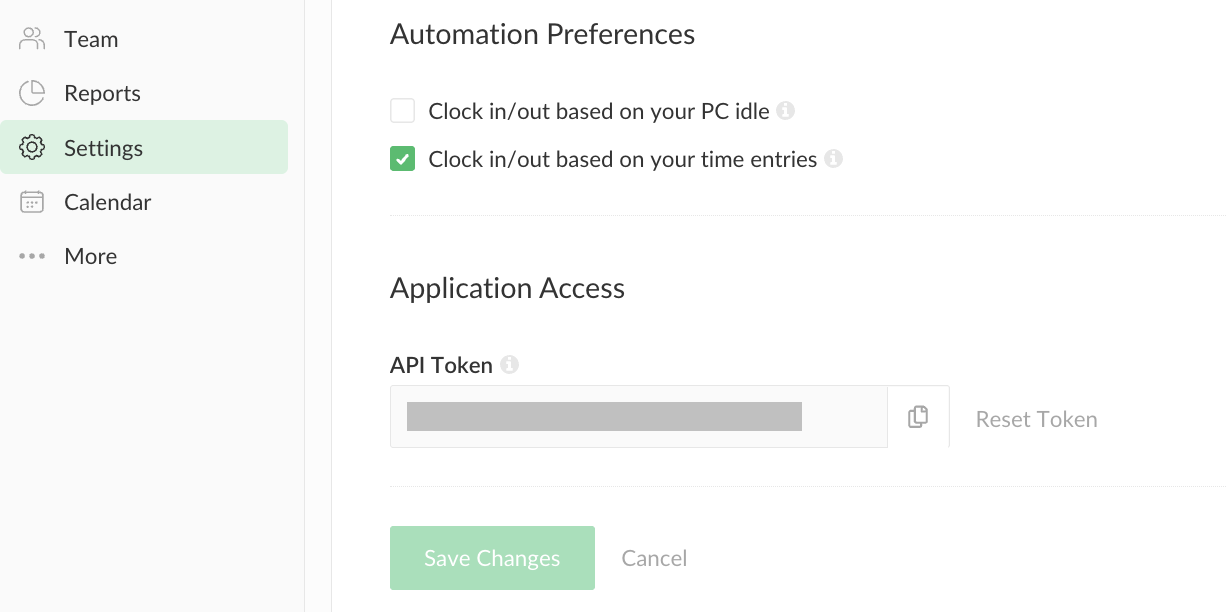
Step 2: Connect in ClientSights
- Go to Services in the top navigation
- Find Everhour in the list and click Connect
- Paste your API token into the token field
- Click Test Connection
ClientSights validates the token before allowing you to proceed. The Connect button activates only after validation passes.
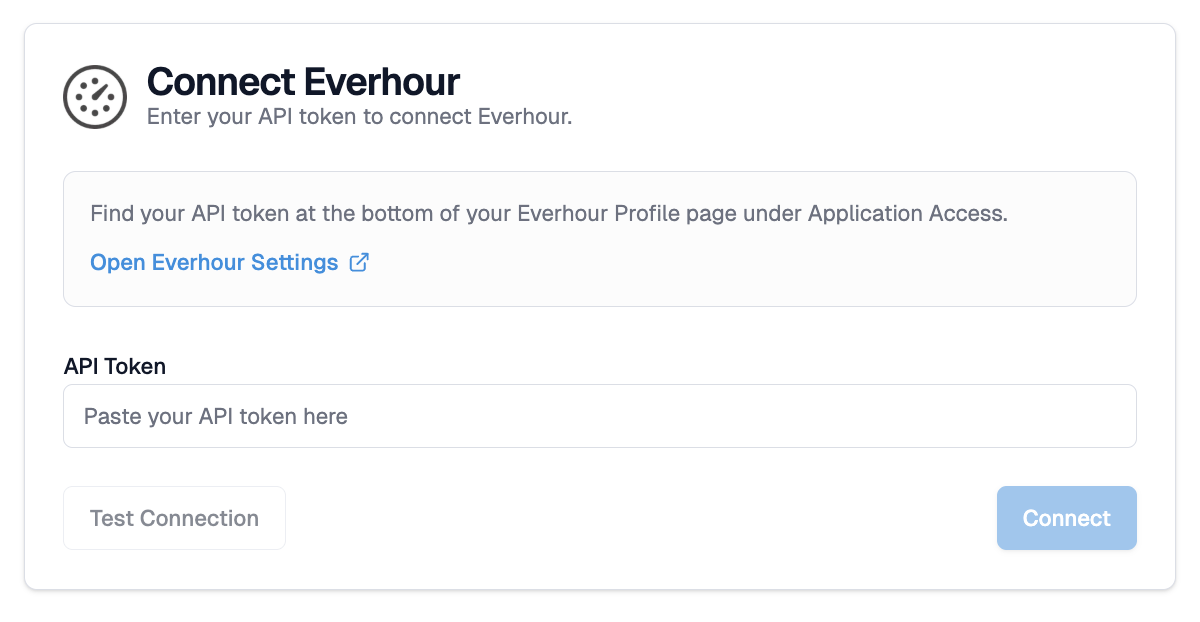
ClientSights creates the webhook subscription automatically at this point. No additional steps are required in Everhour.
Step 3: Review User Mapping
ClientSights imports your Everhour team members and attempts to match them to ClientSights users by full name.
Open the Users tab to review mappings. Everhour does not expose email addresses, so matching is by first and last name only. For any user that did not map automatically, select the correct ClientSights user from the dropdown to complete the mapping.
Only mapped users will have their Everhour activity displayed in ClientSights.
What Happens Next
Once connected and users are mapped, ClientSights begins receiving Everhour time entries as they are saved. Activity appears on the timeline for mapped users from this point forward.
Your API token does not expire, so there is no reconnect flow for Everhour. If you need to update your token, disconnect the integration from Services and reconnect with the new one.
User mappings and connection settings can be reviewed and updated at any time from the integration page.