


Table of contents
Atlassian Setup
ClientSights connects to Jira through Atlassian's OAuth framework. Once connected, Jira delivers issue activity to ClientSights via webhooks for all mapped users. Setup takes a few minutes and requires Jira administrator privileges.
ClientSights supports Jira Cloud. Confluence is not supported as it has no REST webhook API.
For an overview of how Jira activity appears in ClientSights, see Atlassian Integration Overview.
Connecting Atlassian
Step 1: Start the Connection
- Go to Services in the top navigation
- Find Atlassian in the list
- Click Connect Atlassian
Only Admins, Executives, and Owners in ClientSights can initiate this connection. The Jira account used to authorize the connection must have Jira administrator permissions.
Step 2: Authorize ClientSights in Jira
You will be redirected to Jira's OAuth authorization flow. Approve the requested permissions to allow ClientSights to read issue and user data and manage webhooks. Once approved, ClientSights registers the webhook automatically and you return to the integration page.
If your Atlassian account has access to multiple sites, you will select which site to connect. Each site connects separately. Repeat the process to connect additional sites.
Step 3: User Mapping
ClientSights imports Jira users and attempts to match them to ClientSights profiles by email. Open the Users tab to review mappings. For any user that did not map automatically, select the correct ClientSights user from the dropdown.
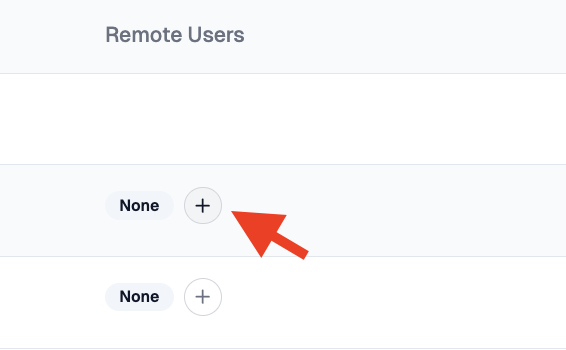
Atlassian hides user email addresses by default. When a webhook does not include an email, ClientSights cannot auto-create the mapping and that user's events will be skipped until they are mapped manually or email visibility is enabled in Atlassian workspace settings.
What Happens Next
Once connected and users are mapped, ClientSights begins receiving Jira activity for issue creation, updates, and comments. Activity appears on the timeline from this point forward. No historical data is imported.
Atlassian dynamic webhooks expire after approximately 30 days. ClientSights does not auto-renew them. When a webhook expires, Jira activity will stop appearing until you reconnect the integration. Reconnecting re-registers the webhook immediately.
User mappings and connection settings can be reviewed and updated at any time from the integration page.