


Table of contents
Slack Integration Overview
The Slack integration gives ClientSights two kinds of signal: presence, which reflects when a user is active in Slack on desktop or browser, and channel message activity from public channels you configure ClientSights to join. Slack also makes ClientSights AI available as a conversational interface directly inside Slack.
For connection steps, see Slack Setup.
How Slack Presence Appears
ClientSights polls each mapped user’s Slack status periodically. When a user is reported active on desktop or browser, ClientSights records a Presence activity. It appears as a lighter-opacity bar in the timeline to distinguish it from work activity. Presence does not affect activity calculations or performance scoring. ClientSights does not interpret it as duration, output, or effort.

Presence reflects desktop and browser sessions only. Mobile sessions are not included.
Presence polling is currently available for US server workspaces only. EU server workspaces do not have presence polling enabled at this time. If you are being onboarded on EU servers, contact success@ClientSights.ai to confirm your presence configuration.
Channel Message Activity
ClientSights can join your public Slack channels and bring message activity into the timeline. You control which channels it joins and what it ingests, from the Channels tab on the Slack integration page.
Channel scope options:
None - No channels joined, presence only
All Public Channels - ClientSights joins every public channel in your workspace
Selected Public Channels - Choose specific channels from a searchable list
Content level options:
Metadata only - ClientSights records when a message was sent and by whom. Message text is not ingested
Full message content - Message text is ingested and available to ClientSights AI for context and analysis
Messages appear on the timeline as {user} posted in #channel. When the same user sends multiple messages in quick succession in the same channel or thread, ClientSights consolidates them into a single {user} posted N messages in #channel entry rather than a separate line for each one. Thread replies are tracked distinctly from top-level posts and appear as {user} posted in a thread in #channel.
Only public channels are supported. Private channels and direct messages are never ingested regardless of configuration. Message edits, deletions, and system messages are not captured. Reactions, files, huddles, and calls are not ingested.
When ClientSights joins a channel, a one-time notification appears in that channel. This is standard Slack behavior and cannot be suppressed.
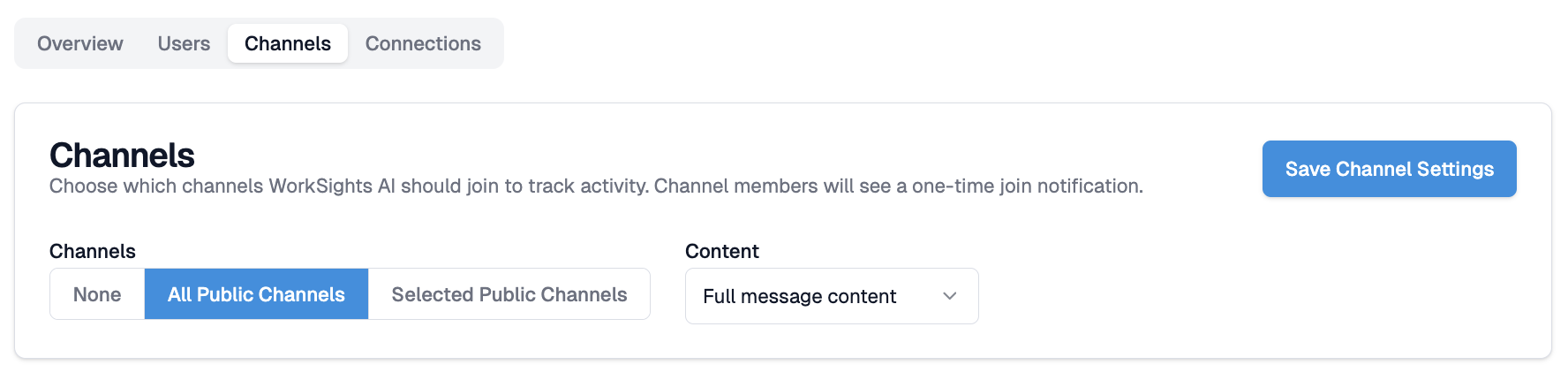
Integration Page Overview
The Slack integration page contains four tabs:
- Overview - Connection details and integration owner
- Users - Slack users mapped automatically by email
- Channels - Configure which public channels ClientSights joins and what content it ingests
- Connections - Connected Slack accounts
ClientSights AI in Slack
ClientSights AI is available as a conversational interface directly inside Slack in two ways. Open the ClientSights app in your Slack sidebar and type a question directly, or mention @ClientSights AI in any public channel to ask a question inline. ClientSights replies in a thread with a structured summary drawn from your team’s activity data. If your workspace is linked to multiple ClientSights accounts, it will prompt you to select which one to query. Every conversation also appears in the Insights tab inside ClientSights.
Current limitations: threaded follow-up questions on Daily Reports or existing Insights are not yet supported. Start a fresh conversation instead. If a response covers an unexpected date range, re-prompt with explicit dates.
Data Notes
ClientSights accesses only the data you configure. For channel activity, ClientSights ingests either metadata or full message content depending on your Content level setting. Slack does not share private channel content, direct messages, or data from channels ClientSights has not been configured to join.
Troubleshooting
Presence is not appearing
Confirm the user is logged into Slack on a desktop device or browser. Mobile sessions are not included. Check that the user’s Slack and ClientSights email addresses match. If the workspace is on EU servers, presence polling is not currently available.
Channel activity is missing
Confirm the relevant channels are configured in the Channels tab with a scope other than None.
Re-saving the channel settings triggers ClientSights to join or leave channels based on the current configuration.
Messages appear without text
Check that Content level is set to Full message content in the Channels tab. Metadata only intentionally stores no text.
Some users’ messages are missing
Confirm that the user is mapped in the Users tab with an active Slack subscription.
The connection was set up before channel features were introduced
Existing tokens may not have the required permissions. Reconnect Slack from the integration page to refresh them.
For persistent issues, contact us at success@ClientSights.ai.