


Table of contents
Assign Manager Relationships
Assigning manager relationships defines how your organisation is structured inside ClientSights. These relationships determine reporting lines, access levels, and which users appear in each manager's view. Setting this up ensures the structure in ClientSights matches your organisation accurately.
Before You Begin
Make sure all users have been imported and assigned roles before starting this step. See User Provisioning for how to do this.
Setup Steps
Step 1: Open the Manager Setup Screen
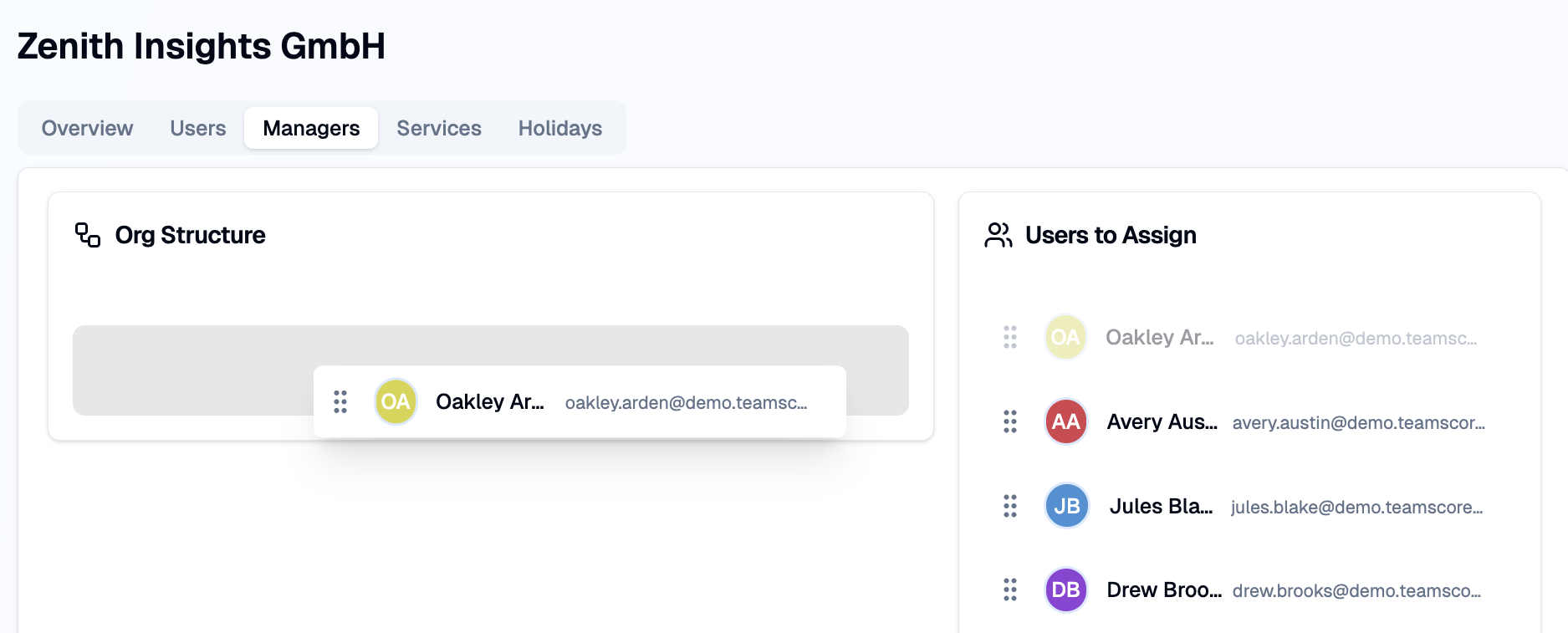
ClientSights displays all users added during provisioning. The left side lists unplaced users. The right side shows the hierarchy you are building.
Step 2: Assign Manager Relationships
Drag a user from the left panel onto their manager in the right panel. ClientSights saves each assignment automatically and updates visibility rules immediately.
Step 3: Adjust or Correct Relationships
If someone was added under the wrong manager, drag them to the correct one. You can reposition as many people as needed until the structure accurately reflects your organisation.
Step 4: Review and Complete
Once the reporting lines look correct, select Next to finish provisioning.
What Happens Next
Manager relationships can be updated at any time from Account Settings. Changes apply immediately across the product.
Once your reporting structure is in place, ClientSights can surface findings and reports scoped to the right people. Managers see activity and Observer findings for their direct reports. Executives see across the whole account.
Related Guides
User Provisioning - importing and assigning roles before setting up reporting lines
Insights - how reporting lines shape what each manager sees in their feed
Activity Dashboard - day-by-day activity view scoped to your team
Daily Reports - daily and weekly briefings shaped by your reporting structure