


Table of contents
Activity Detail
Activity Detail gives you a deep look at how work unfolded on a specific date. It includes an activity timeline, an AI Summary, and a chronological list of every activity logged for each person.
You can reach it two ways. From Activities in the top navigation, then select Detail, it opens showing your full team. Clicking any person's name in the Activity Dashboard opens the same view pre-filtered to that person, so you land directly on their day without any extra steps.
Navigating Dates and Filtering
The selected date is shown at the top left. Use the arrows to move between days, click the calendar icon to jump to a specific date, or use Date Range to view activity across multiple consecutive days.
Use the Team filter to narrow the view to a specific person or group. The Categories and Services filters work the same way as in the Activity Dashboard, letting you focus on specific activity types or data sources.

Reading the Page
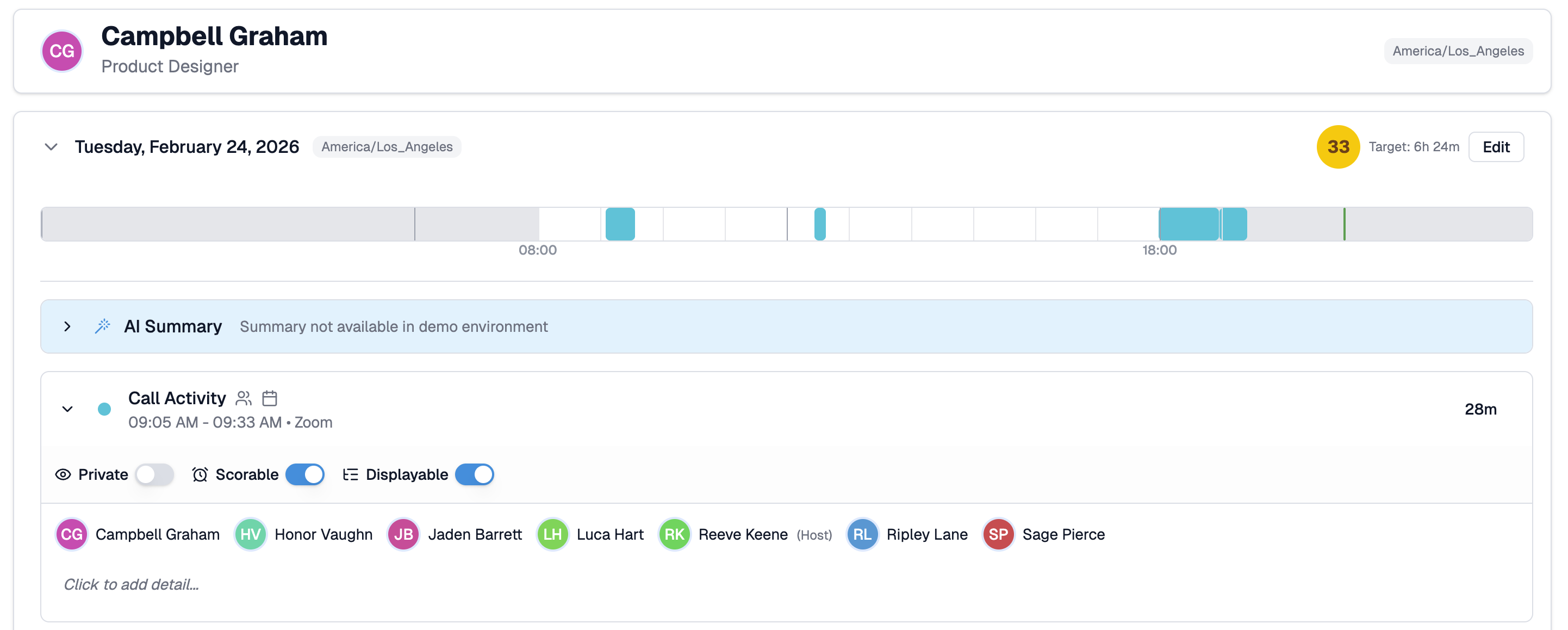
Each person appears as their own card with their name, title, and timezone shown in the header. Below the header, their day expands into four sections.
- Date and activity row - shows the date, the user's local timezone, their daily activity estimate, their target hours for that day, and an Edit button to adjust the target. The chevron on the left collapses or expands the full day card.
- Activity timeline - a colour-coded bar showing the person's day from their scheduled start to end time. Each colour represents an activity type. Gray areas are non-work hours.
- AI Summary - a short AI-generated narrative describing how the day unfolded. It draws on the events logged and any AI Context set for the user. The summary is collapsible.
- Activity list - every activity logged for that day in chronological order. Each row shows the activity type with a colour dot, the time and service it came from, a location pin icon when location data is available, and the estimated duration on the right. Click the chevron on any row to expand it and see additional metadata.
What ClientSights Captures
ClientSights captures only metadata about activities, not content. This keeps the focus on work patterns rather than what was said, written, or built.
- Calendar events - attendees and invited participants, not meeting content.
- Emails - subject line and recipients, not body or attachments.
- Calls - participants, not call content.
- Chats - chat titles and participants, not message contents.
- Files - file titles and activity type such as created or edited, not file content.
- Code - commit messages and repository details, not code content.
Activity Rows and Time Estimates
Each activity appears in a collapsed row by default, showing the time it was logged and key metadata. On the right, ClientSights shows an estimated duration for the activity based on preset defaults: one minute for sending or accepting a meeting invite, five minutes for sending an email, ten minutes for a code commit, and so on.
These estimates are adjusted based on the full context of the day and can be manually edited if you want to correct or customise a value.
ClientSights also consolidates multiple entries for the same activity to reduce noise. For example, numerous file edit logs throughout the day are merged into a single activity with a realistic duration.
Expanding an Activity
Opening an activity row reveals additional metadata such as commit messages, repository details, or participant lists where applicable. Content is never shown.
Activity Toggles
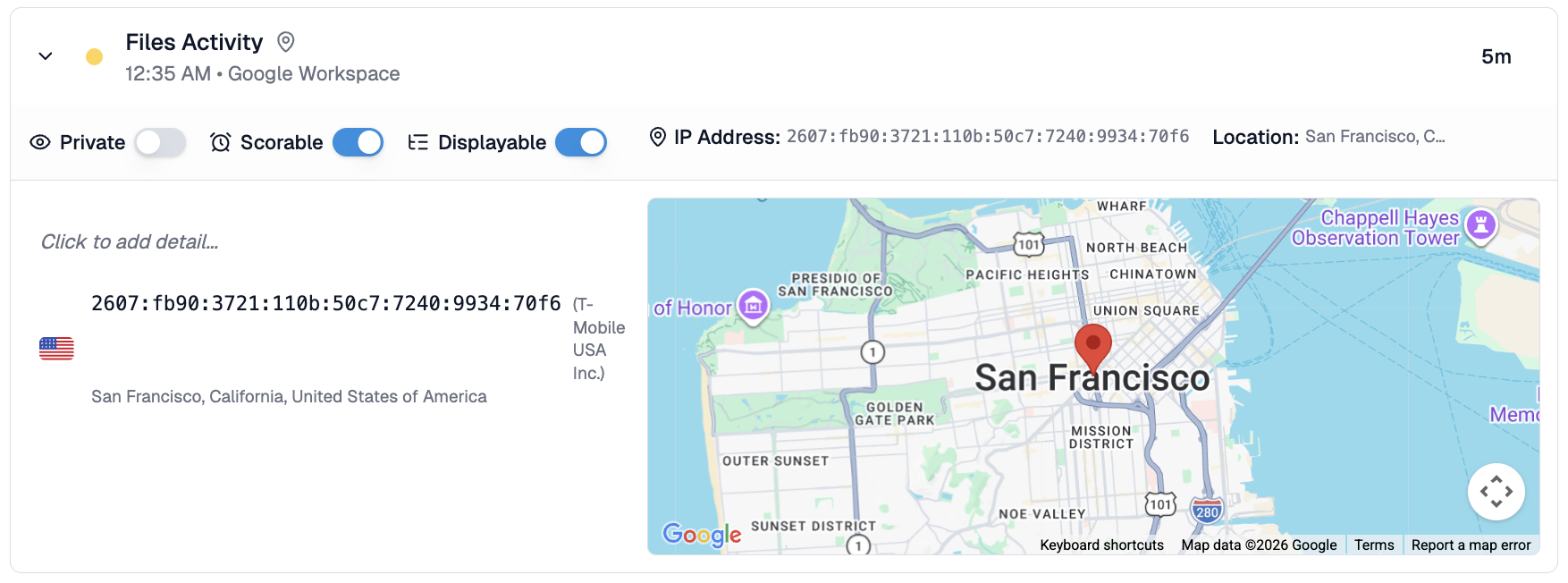
Each activity has three toggles that control how it is treated.
- Scorable - determines whether the activity counts toward the person's daily activity estimate. Solo calendar events with no attendees are not scored by default since they often represent personal blocks rather than work. Toggle this on if the activity should count.
- Private - marks the activity so its details are not visible to anyone else. Useful for sensitive meetings or calls.
- Displayable - controls whether the activity appears in the timeline bar. Some activities are hidden by default to reduce noise.
Geolocation
When location data is available, a map pin icon appears on the activity row. This indicates ClientSights has an estimated location for that activity based on IP address. You can correct a location and save it for your account, which improves accuracy across all future activity from the same IP address.
Related Guides
Activity Dashboard - team-wide scores and timelines by day
Activity Scores - daily activity estimates for your team
AI Context - how to improve the accuracy of AI Summaries for your users